Uploading and Downloading Data
This guide explains how to contribute datasets to the CEMA Warehouse. The warehouse accepts different file formats and ensures all uploaded data maintains high quality and accessibility standards.
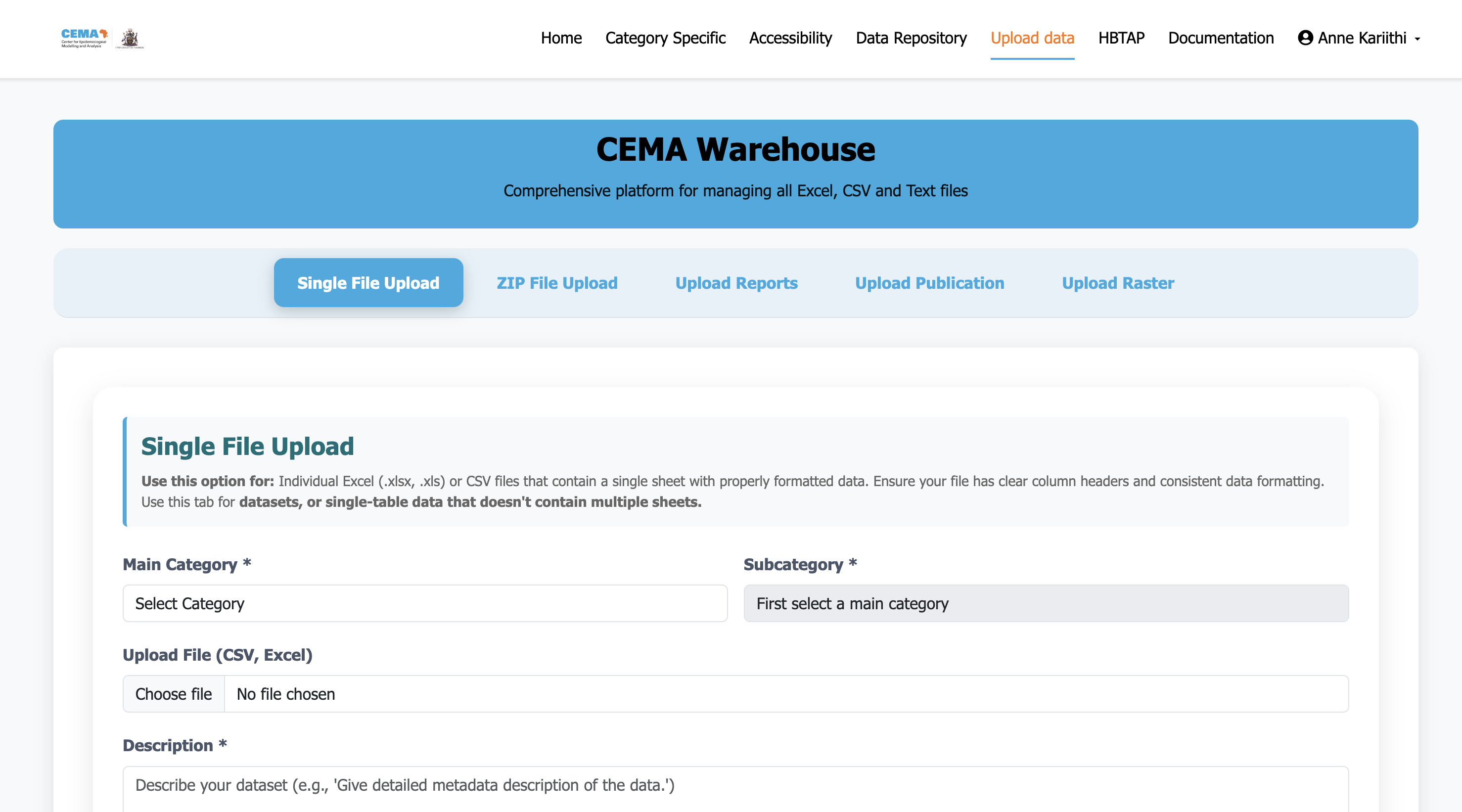
Access the upload tab form the navigation bar. User must be authenticated
Any logged-in user can upload datasets. Please fill in all sections carefully since good provenance makes datasets useful to others.
How to upload
- Click Upload in the navigation bar.
- Fill in the dataset details
| Menu item | What it means |
|---|---|
| Display name | a clear, descriptive name (e.g. "STH Prevalence by Subcounty — 2024") |
| Description | what the dataset contains and what it is useful for |
| Keywords | comma-separated words to help others find it (e.g. "STH, helminth, subcounty, 2024") |
| Category | select the most appropriate category from the dropdown. A subcategory dropdown will appear. |
| Tag | this is filled automatically from your subcategory selection |
- Add the intended File you want to upload:
| Steps |
|---|
| 1. Click the dotted upload box, or drag and drop your file onto it |
| 2. Accepted tabular formats: CSV, Excel (.xlsx/.xls), Parquet — these are stored in the database and support live preview and API access |
| 3. Accepted document formats: PDF, Word (.docx), PowerPoint, ZIP, PNG, JPG — these are stored as files and support download only |
- Fill in the Provenance (very important!):
| Menu item | What it means |
|---|---|
| Data source | the institution that originally collected the data (e.g. "Ministry of Health Kenya"). This is pre-filled based on your category but you can change it. |
| Source URL | a link to the original data source, if available |
| Processing description | describe any cleaning or transformation you applied |
| Code repository URL | a GitHub or GitLab link to your processing scripts, if applicable |
| Steward name and email | your name and email, so users can contact you with questions |
- Click Upload dataset.
You will be taken to the dataset's detail page once the upload is complete.
Downloading Data
From a dataset detail page
On the right side of any dataset page, you will find three download buttons:
| Format | Best for |
|---|---|
| CSV | Excel, Google Sheets, any data analysis tool |
| Excel (.xlsx) | Opening directly in Microsoft Excel |
| Parquet | Python or R users who want a compact, fast-loading format |
Click the button for the format you want. The file will download to your computer's default downloads folder.
Downloading a specific version
If you need an older version of a dataset (for reproducibility or comparison), ask an administrator.
Need help? Contact me or consult the documentation sections for detailed guidance on specific tasks.