Publication and Document Uploads
The warehouse supports comprehensive document management for research publications, policy briefs, reports, and other scholarly materials. This section guides you through the upload process of publications and said documents.
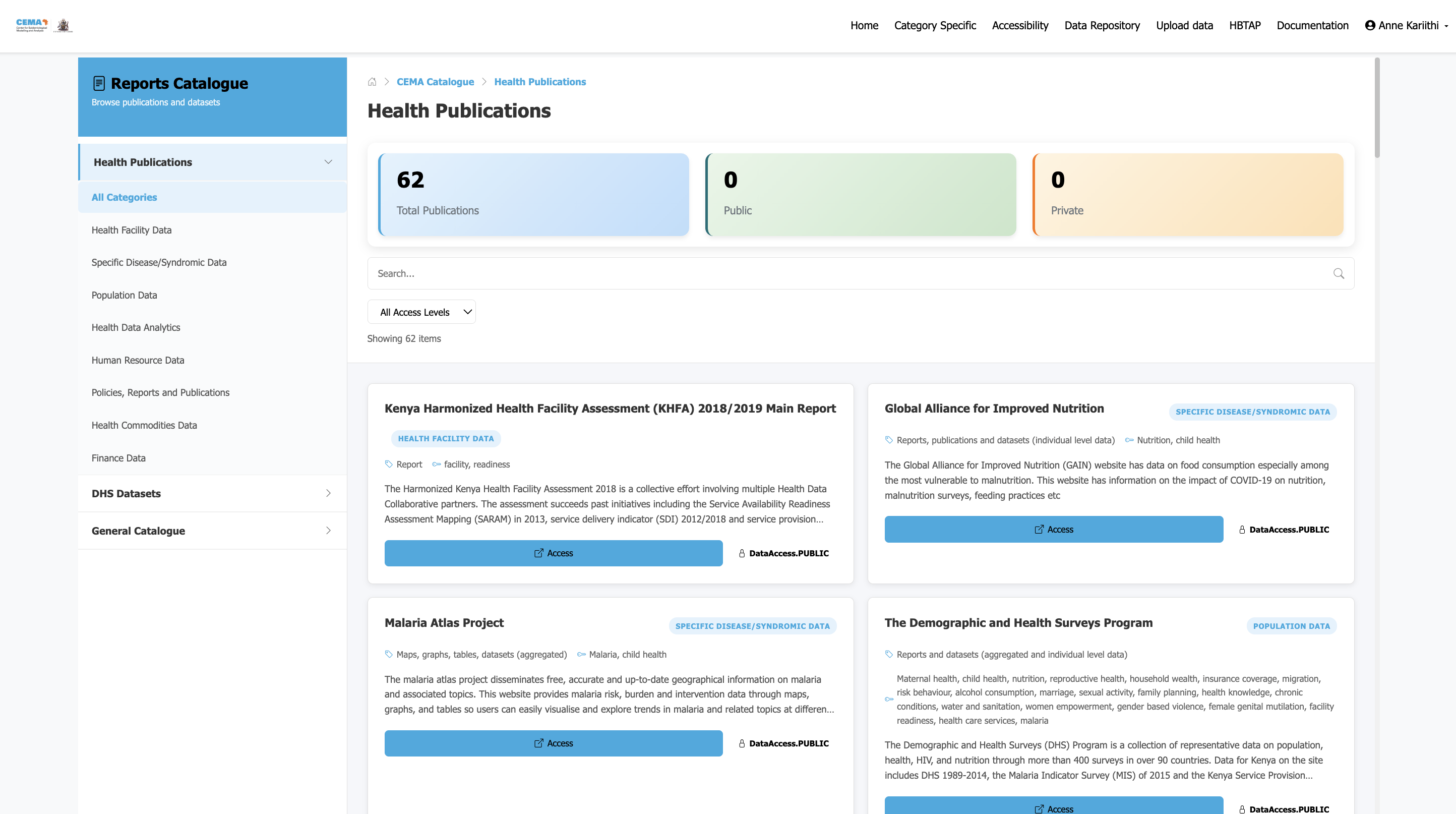
Publication access interface showing all available publications and their data access levels
Document Preparation
1. File Format Requirements
- Primary Format: Convert to PDF format when possible. But users can upload word document files as well
- Text Searchability: Ensure text is searchable (not scanned images only)
- File Size: Optimize file size for web delivery (recommended: under 50MB)
- Quality: Maintain high quality for charts, graphs, and images
2. Metadata Enhancement
- Include proper metadata in document properties
- Add document title( this will automatically be taken as the base name of the document being uploaded), author, and creation date
- Include keywords and subject information
- Add data access levels
- Select the category where the data is to be uploaded ()
Upload Process
1. Publications (file formats)
 Step-by-step publication upload workflow diagram
Step 1: Category Selection
- Navigate to the publication upload interface
- Select the appropriate document category from the dropdown
- Set the data type either report, policy or a word document
Step 2: File Upload
- Click "Choose File" to select your document
- Wait for upload completion and file validation
- Review any file format warnings or recommendations
Step 3: Description/Metadata Entry
- Title: Title will be the base file name
- Description: Add a comprehensive description (recommended: 100-500 words)
- Keywords: Tag with relevant keywords to improve search functionality
- Authors: List all authors and their affiliations (Optional)
- Publication Date: Set the publication or creation date
- Access Level: Choose public, restricted, or private access
Step 4: Review and Submit
- Verify all metadata fields are complete
- Check file upload was successful and you can see it in the choose file section
- Submit for processing by clicking the Upload file button
2.Resources (Links, Dasboards not physical files)
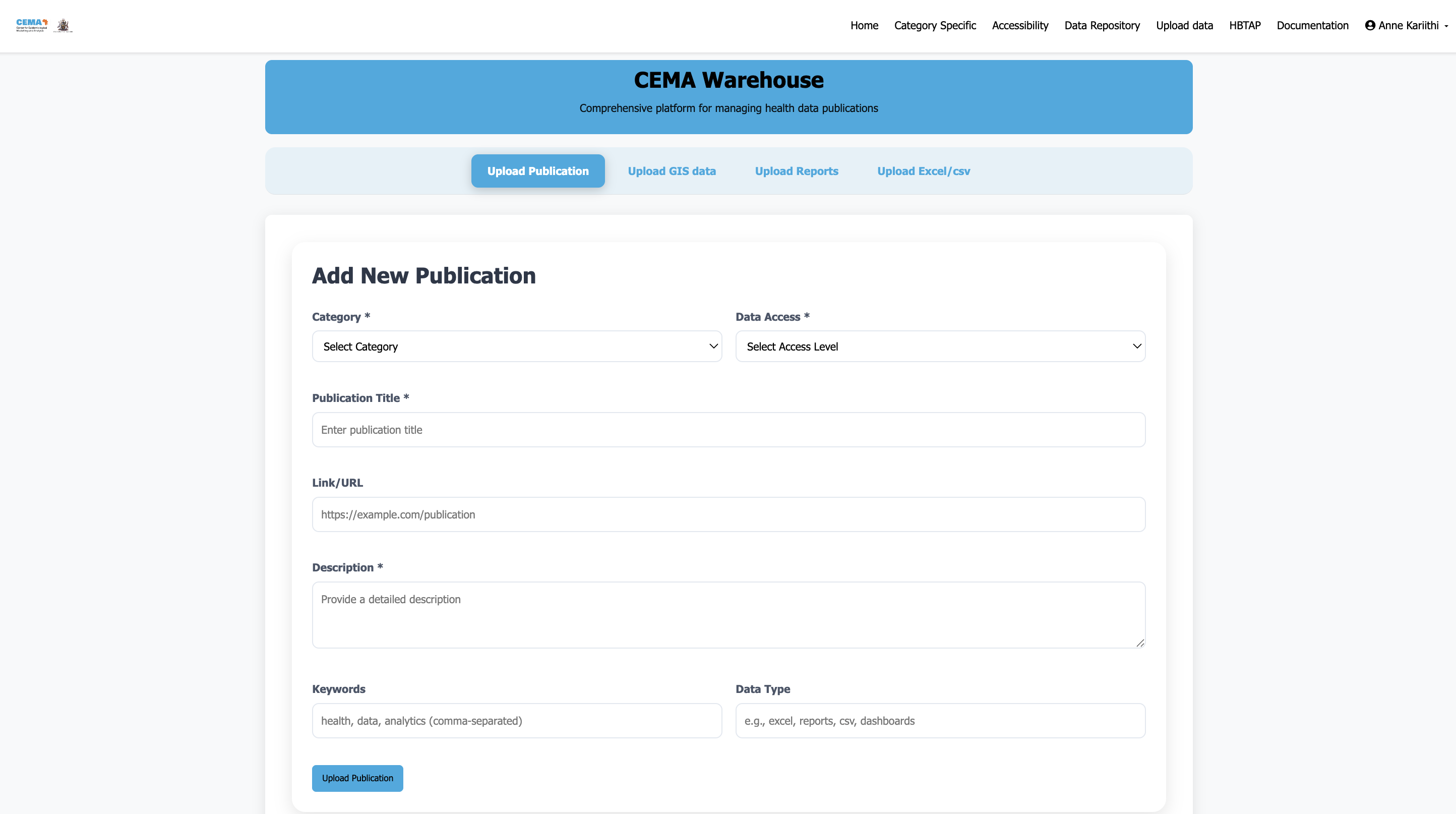 Step-by-step resource upload workflow diagram
Step 1: Category Selection
- Navigate to the resources upload interface
- Select the appropriate document category from the dropdown
- Enter the data type either csv, dashboards, excel, reports, policies, external links etc
Step 2: Description/Metadata Entry
- Title: Enter the full publication title
- Resource access link/url: Enter or paste the external link of the associated paper, data or dashboard
- Description: Add a comprehensive description (recommended: 100-500 words)
- Keywords: Tag with relevant keywords to improve search functionality
- Authors: List all authors and their affiliations (Optional)
- Publication Date: Set the publication or creation date
- Access Level: Choose public, restricted, or private access
Step 3: Review and Submit
- Verify all metadata fields are complete
- Check file upload was successful and you can see it in the choose file section
- Submit for processing by clicking the Upload file button
Best Practices
Keyword Optimization
Use specific, relevant keywords that researchers would likely search for and they should be comma-seperated:
- Geographic terms: "Kenya", "Sub-Saharan Africa", "Nairobi County"
- Health topics: "maternal health", "infectious diseases", "health systems"
- Methodology: "cross-sectional study", "randomized trial", "qualitative analysis"
- Population groups: "adolescents", "pregnant women", "healthcare workers", "children"
- Financing: "expenditure", "health spending", "budget"
File Naming Conventions
Use consistent naming patterns:
YYYY-MM-DD_ShortTitle.pdf
2024-03-15_MaternalHealthKenya.pdf

# camel case
ShortTitle.pdf
MaternalHealthKenya.pdf

Short_Title.pdf
Maternal_Health_Kenya.pdf

Short_Title.docs
Maternal_Health_Kenya.docs
Quality Assurance
Automated Checks
The system automatically performs:
- File format validation
- Text extraction verification
- Metadata avaialability check
Access and Permissions
Public Access
- Available to all CEMA users
- Indexed in public search results
Restricted Access
- Available to registered users only
- Requires login for download
- Indexed in private search results
Need help? Contact or consult the documentation sections for detailed guidance on specific tasks.