Uploading Files to CEMA Warehouse
This guide explains how to contribute datasets to the CEMA Warehouse. The warehouse accepts different file formats and ensures all uploaded data maintains high quality and accessibility standards.
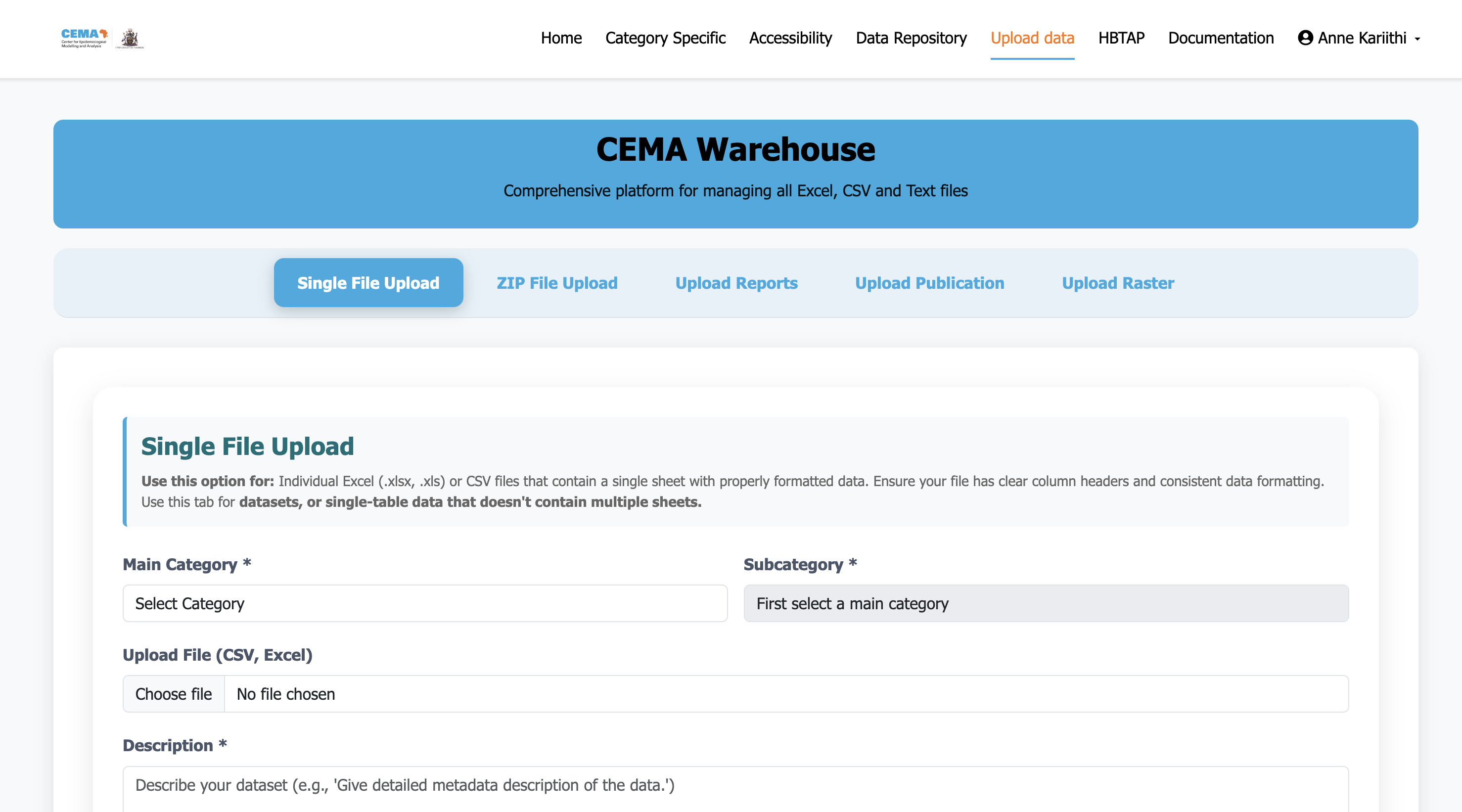 Access the UPLOAD DATA tab form the navigation bar. User must be authenticated
Prerequisites
Account Requirements
- User Authentication: You must use your CEMA email and provided password.
- Verification: Verification is done to ensure data integrity is maintained.
- Permissions: Only verified users can access upload functionalitys.
Supported File Types
Tabular Data
- CSV files (Comma-separated values)
- Excel files (.xlsx, .xls)
Geospatial Data
- Shapefiles (.shp with associated .dbf, .prj, .shx files uploaded as zipped files)
- Raster files (.tif, .geotiff)
Documents and Publications
- PDF documents
- Word documents (.docx, .doc)
- ZIP archives (for bundled datasets or workbooks)
Upload Process Overview
1. Login and Access Upload Pages
- Navigate to the warehouse homepage
- On the upload data tab - you will be required to log in with the verified credentials
- Access category-specific upload pages, file, publication and raster uploads
2. Choose Upload Category
Select the appropriate category for your data:
- Demography: Population, census, demographic indicators, and population linelists
- Health Systems: Facilities and infrastructure, human resource (health workforce), Quality of care and health financing
- Health Status: Maternal and child health
- Accessibility: Geographic accessibility to health facilities, readiness to health care services and distance calculations to medical facilities
- Disease-Specific: Individual conditions, and outbreaks
- Animal Health: Veterinary surveillance, livestock data
3. Upload and Describe
- Select your file(s) using the upload interface
- Provide comprehensive descriptions of the metadata and sources of the data
- Add relevant metadata and tags
- Select appropriate subcategories
Detailed Upload Instructions
Data File Uploads
Step 1: Prepare Your Data
✅ Clean and validate your dataset
✅ Ensure consistent formatting
✅ Remove any sensitive/personal information
✅ Include appropriate headers for columns
✅ Document data sources and methodology in the description section
Step 2: Access Upload Interface
- Navigate to the specific category upload page
- Click "Choose Files" or drag files to upload area
- Select the file you want to upload
Step 3: Add Metadata
Required Information:
- Title: Descriptive name for the dataset
- Description: Comprehensive explanation of data contents and metadata
- Source: Origin of the data (organization, study, survey)
- Date Range: Time period covered by the data (If available at the time of upload)
- Geographic Coverage: Areas/regions included (county, national etc)
Quality Control Process
Admin Review System
All uploads undergo review before publication:
1. Automated Checks
- File format validation
- Basic structure verification - suitable for storage in the database
- Duplicate file detection
2. Approval Process
- Feedback provided for rejected uploads
Data Standards
File Formatting Requirements
CSV Files:
- Comma delimiters
- Header row required
- Consistent data types per column

Excel Files:
- Must contain a **SINGLE** worksheet
- Clear column headers
- No merged cells in data area
- Consistent formatting

Geospatial Files:
- Valid coordinate systems
- Complete attribute tables
- Proper file associations (for shapefiles: must have .shp,.shx,.dbf,.prj files)
- Climate data as well, either csv or raster files
Metadata Requirements
Minimum Required Metadata:
- Dataset title
- Description (minimim 50 characters)
- Data source/organization
- Collection date or time period if available during upload
- Geographic coverage (County, sub-county, county etc.)
- Upload category selection for category specific uploads

Additional Metadata for reports, policies and publications:
- Collection methodology
- Sample size or scope
- Known limitations
- Contact information
- Related datasets or publications
Best Practices for Contributors
Data Preparation
- Clean Before Upload: Remove inconsistencies, duplicates, empty records, and errors
- Document Everything: Provide comprehensive metadata
- Use Standard Formats: Prefer widely-compatible file formats (.csv, .xlsx, .xls, .doc, .docs,.pdf, .zip)
- Test Locally: Verify files opens correctly before uploading to the warehouse
- Consider Users: Think about how others will use your data therefore making the column headers comprehensible to outside people. For example instead of pop_2022 we could have the column read Population_2022 etc
Metadata Guidelines
- Be Descriptive: Write clear, detailed descriptions
- Use Keywords: Include searchable terms for example, demography, maternal, facilities etc
- Cite Sources: Always acknowledge original data sources
Collaboration Tips
- Coordinate with Team: Avoid duplicate uploads - tcehnically this validation rule has been set, so no duplicated records can be uploaded either way
- Version Control: Clearly indicate if updating existing data - append date on the name for example, surveillance_9_2025 and describe this clearly in the metadata description
- Communicate Changes: Notify users of data updates
Troubleshooting Common Issues
Upload Failures
Problem: File won't upload
Solutions:
- Check file size limits (it is set to 4GB for all files)
- Verify file format is supported on the upload section you selected
- Ensure stable internet connection
- Try uploading individual files instead of batch
- Ensure the file you are uploading has one worksheet only else please zip the file.
Problem: Login issues
Solutions:
- Verify account is approved ; use your cemna email and the given password (cemafrica)
- Clear browser cache/cookies
- Default to Chrome or Firefox
Format Issues
Problem: CSV not displaying correctly
Solutions:
- Check delimiter settings (should be commas)
- Make sure headers/column names are present (should be in camel case ie. numberSick or number_sick or number sick)
- Ensure no embedded line breaks, images, graphs, or description inside the files
Problem: Shapefile upload errors
Solutions:
- Verify all required files (.shp, .dbf, .shx) are included
- Check file naming consistency
- Ensure projection file (.prj) is included
- Validate geometry before upload
Support and contact
- Documentation: Refer to upload overview guide
- FAQ: Check frequently asked questions
Need help? Contact me or consult the documentation sections for detailed guidance on specific tasks.